Online sellers
Isolate a product from a room, table, or inconsistent backdrop for a cleaner listing image.
A consistent subject presentation that is easier to place across product pages and catalogs.
Practical image editing
Use photo cut out free online workflows to isolate a person, product, or object from its surroundings, then check the edges before placing it in a new design.

Related workflows
Choose the route that matches the edit: background removal, object cleanup, or a more controlled AI-assisted result.
Set expectations
A cut-out is only as useful as its boundaries and the way it will be used afterward.
Hair, fur, foliage, glass, and thin straps can blend into nearby colors or lose small details.
What to do instead
Zoom in and inspect the outline against both light and dark backgrounds.
A subject may be isolated while its natural cast shadow is weakened or removed.
What to do instead
Keep the original image for reference, or add a new shadow in the destination design.
Blur, glare, motion artifacts, and poor lighting remain part of the source image.
What to do instead
Retouch the subject separately after isolation, using the original as a visual reference.
A visually isolated subject can still appear on a solid background if the chosen output does not retain transparency.
What to do instead
Check the final file and destination workflow before publishing.
Simple process
Use a short review loop so the isolated subject looks intentional wherever it is placed.
Start with a clear image and decide exactly which person, product, or object should remain.
Look around hair, corners, wheels, handles, and other narrow details instead of judging only the center.
Test the cut-out on its intended background and compare it with the source before sharing or publishing.
Review checkpoints
These checkpoints describe the parts of a cut-out that usually deserve another look before delivery.
Decision guide
Compare a quick cut-out workflow with a more deliberate edit when the image will be used repeatedly.
| Quick cut-out | Reviewed cut-out | |
|---|---|---|
| Best for | Simple subjects with clear contrast | Subjects with fine edges or mixed backgrounds |
| Main priority | Speed of initial isolation | Boundary accuracy and placement confidence |
| Edge review | Basic visual check | Zoomed inspection around difficult details |
| Background change | Useful for straightforward replacements | Tested against the actual destination background |
| Rework risk | Higher when the source is busy or low contrast | Lower after a deliberate comparison pass |
| Best output habit | Keep the source available | Keep both source and final cut-out versions |
Use cases
The right cut-out standard depends on who will use the image and where it will appear next.
Isolate a product from a room, table, or inconsistent backdrop for a cleaner listing image.
A consistent subject presentation that is easier to place across product pages and catalogs.
Separate a person or prop from a casual photo before adding it to a post, thumbnail, or collage.
More control over composition without rebuilding the entire image.
Prepare an object or portrait for a poster, presentation, invitation, or campaign layout.
A flexible visual element that can be positioned on a new background.
Start with a phone photo that needs the subject separated before a quick edit or share.
A cleaner base asset for a short, focused editing workflow.
Visual check
The useful result is not only a removed background; it is a subject that still looks natural at the boundary.

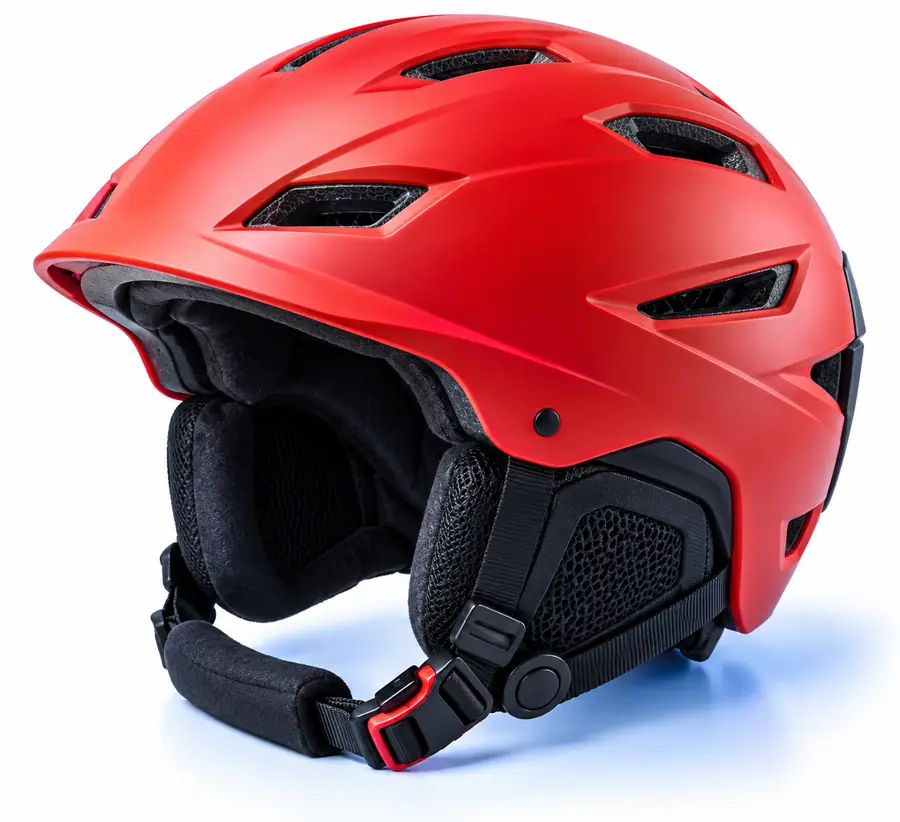
Compare the outline at full size and in the intended layout.
BeforeAfterReady to edit
Start with the image you have, describe the subject you want to keep, and review the result against its final background before sharing it.
Scenario FAQ
Answers to common questions about making a clean cut-out for online use.
A photo cut out isolates a chosen person, product, or object from the surrounding scene. The isolated subject can then be placed on a different background or used in a new composition.
You can use an online workflow to begin isolating a subject without installing desktop editing software. The final quality still depends on the source image and how carefully you review difficult edges.
Images with clear contrast between the subject and background are usually easier to isolate. Good lighting and visible boundaries also help preserve details around hair, fur, thin objects, and corners.
Place the result on both a light and a dark background and zoom in around the outline. Look for halos, missing details, rough corners, and leftover background pixels before using it in a design.
A cut-out workflow may reduce or remove the original cast shadow along with the background. If the shadow is important, keep the source image and recreate or retain the shadow separately in the final composition.